9-2 Development Environment
Learning Objectives
This chapter will guide readers through the software development workflow for the Pandora highly integrated edge computing motherboard. The focus is on guiding how to correctly install and configure the development environment, including essential software packages and dependencies. Through the environment deployment instructions in this chapter, developers can ensure the system environment meets official specifications for subsequent AI inference and application implementation. This will enhance development efficiency and ensure the stability of program execution.
➤To ensure a smooth and painless start, the environments and software packages ( such as Qt Creator ) introduced in this tutorial are all open-source/educational versions. This means you can set up a complete development environment at zero cost to familiarize yourself with the practical applications of the NexVDO SDK.
( Note: If you plan to develop a formal commercial project in the future, please make sure to evaluate whether you need to obtain the corresponding commercial license in accordance with Qt's official guidelines. )
Overview and Preparatory Work
Before starting the installation, please ensure you have obtained the following installer files for the Linux ARM64 architecture:
- Qt6 Installer: qt-online-installer-linux-arm64-4.10.0.run
- Qt Creator: qt-creator-opensource-linux-arm64-14.0.2.run ( Ver. 14.0.2 )
- CMake: cmake-3.30.5-linux-aarch64.sh ( Ver. 3.30.5 )
If you do not have the installer files, follow these steps to obtain them:
1. Register a Qt Account
A Qt account is required to log in to the installer for downloading and installing the software.
- Official Websit:https://www.qt.io
- Operation Steps o Visit the Qt official website and navigate to the registration page.
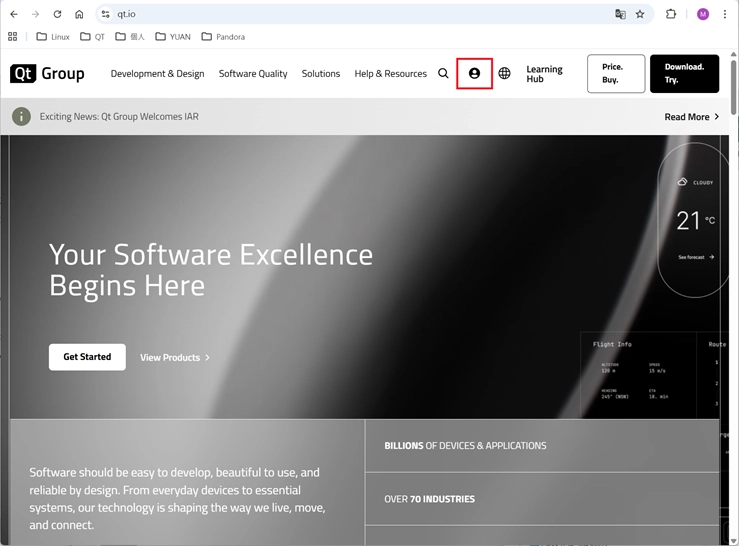
o Fill in the required information to create a new account.
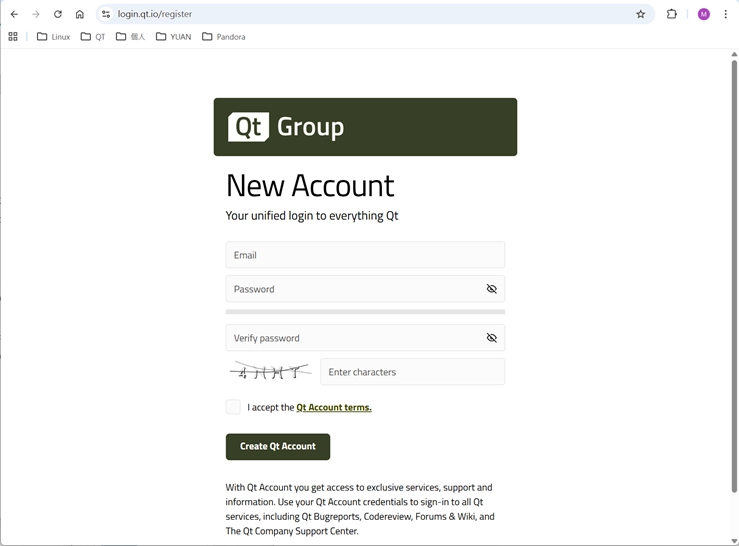
o Once completed, go to the Qt login page to confirm the account is working correctly.
2. Download Qt Online Installer
Please download the installer for the Linux ARM64 architecture from the Qt user portal.
- Download Page: https://login.qt.io/login
- Operation Steps
o Log in to your Qt account.
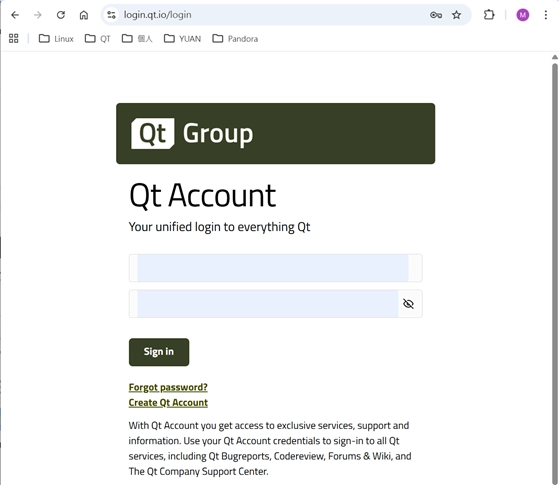
o Go to the Download page.
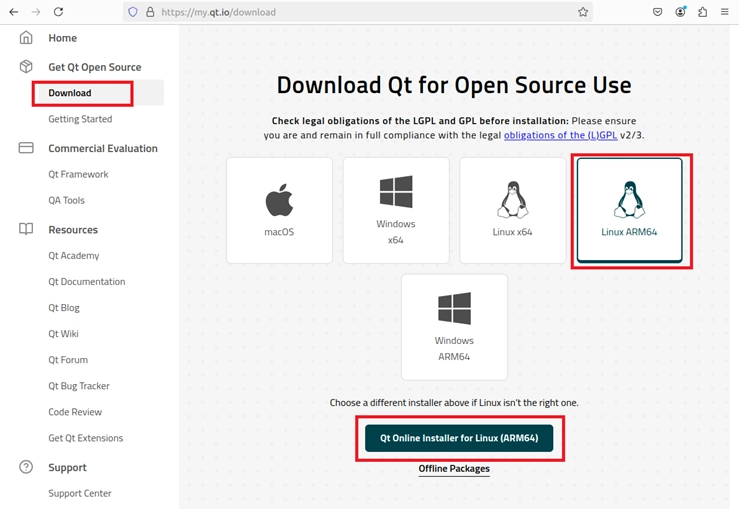
o Select the version for Linux ARM64.
- File Name Example: qt-online-installer-linux-arm64-4.10.0.run
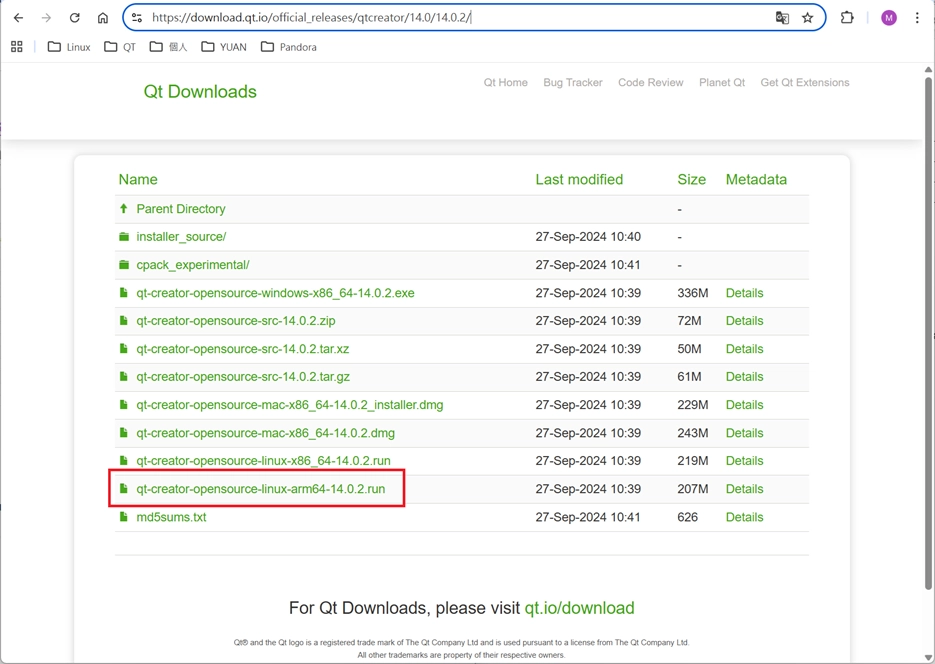
3. Download Qt Creator Install
Download the standalone Qt Creator IDE installer.
-
Download Link:https://download.qt.io/official_releases/qtcreator/14.0/14.0.2/
-
Download File: qt-creator-opensource-linux-arm64-14.0.2.run
4. Download CMake Tool
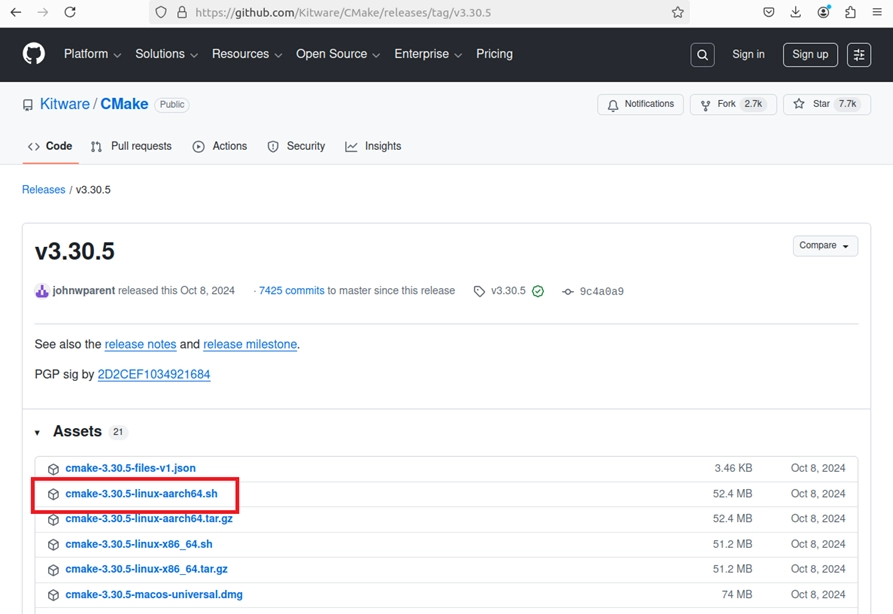
CMake is an essential build tool for this development environment; please obtain the specific version from GitHub.
-
Download Link:https://github.com/Kitware/CMake/releases/tag/v3.30.5
-
**Download File:**cmake-3.30.5-linux-aarch64.sh
Environment Setup Steps
1. System Update and Basic Dependency Installation
Execute the following commands in the Terminal to ensure system packages are up to date and install necessary development libraries.
# Update and upgrade the system

sudo apt update

sudo apt upgrade
# Install necessary libraries and compilation tool

sudo apt install libx11-* libxcb* libxkbcommon-x11-dev build-essential libgl1-mesa-dev
2. Qt6 Installation Process
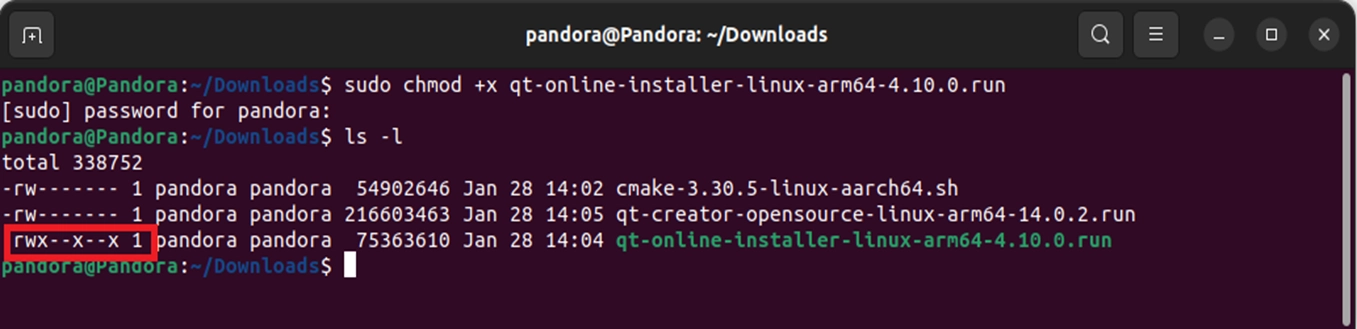
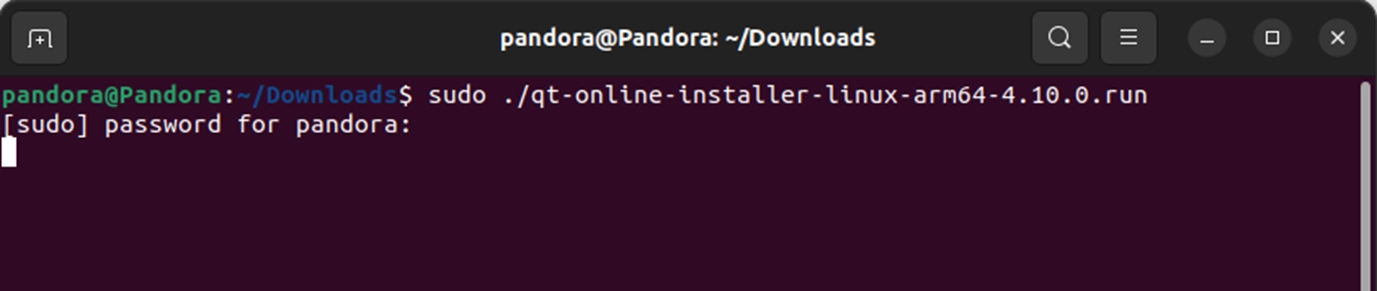
- Change permissions and execute
sudo chmod +x qt-online-installer-linux-arm64-4.10.0.run

sudo ./qt-online-installer-linux-arm64-4.10.0.run
To speed up the installation, you can add the mirror parameter to get data from a mirror site near your location. For example: --mirror https://mirrors.aliyun.com/qt
You can get the complete mirror site list and connection status from the following URL: https://download.qt.io/static/mirrorlist/mirmon/
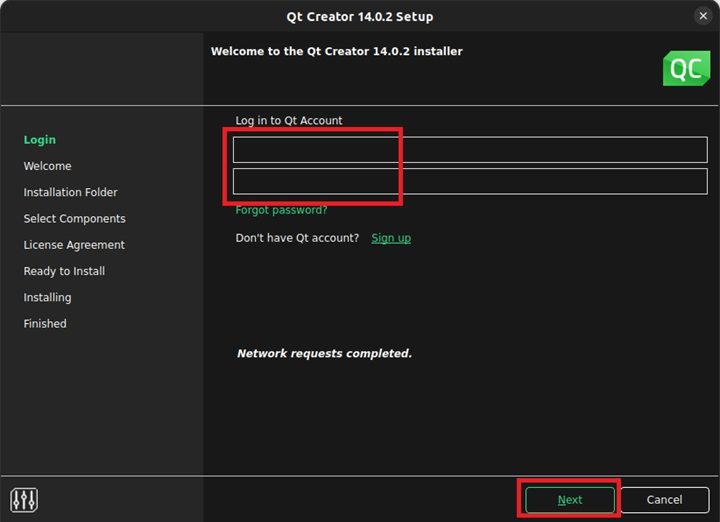
- Log in to Qt Account: Enter your Qt account email and password in the installation interface
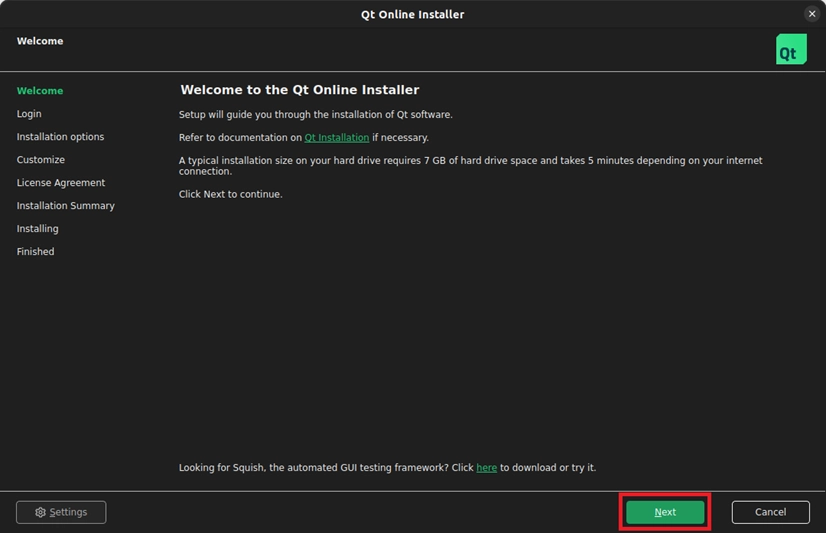
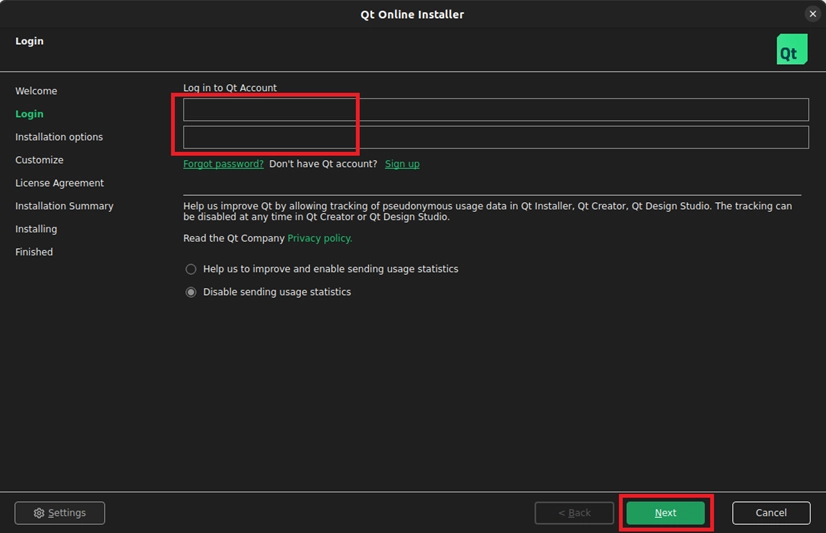
- Custom Installation Options
o Select "Custom Installation."
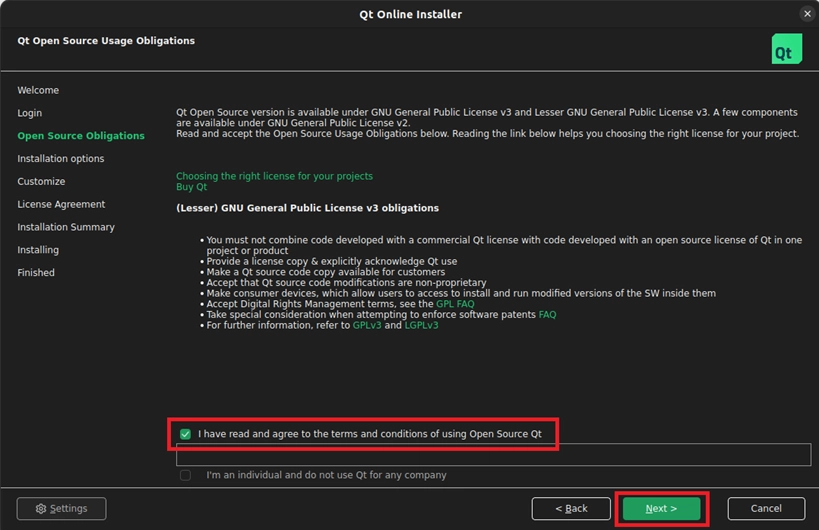
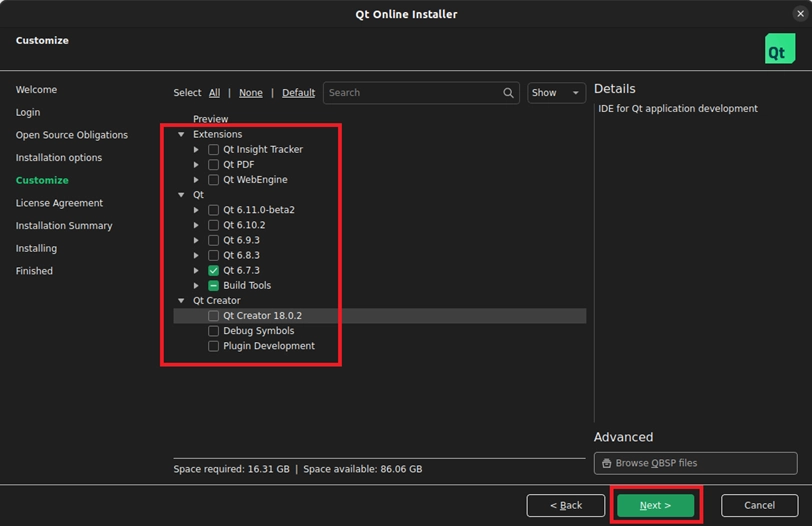
Check only Qt 6.7.3 and its corresponding Build Tools; it is recommended to uncheck other items to save space.
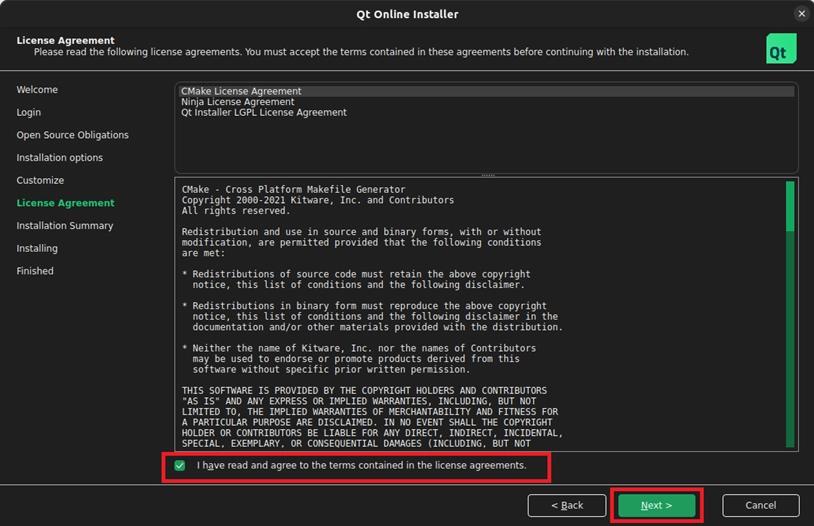
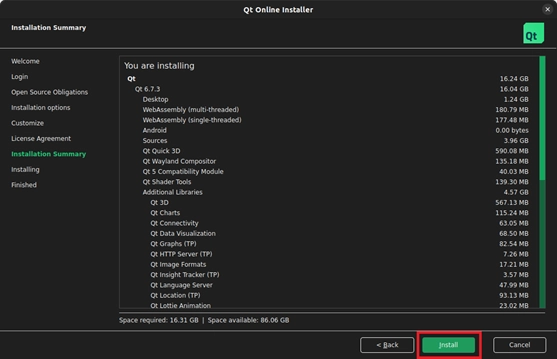
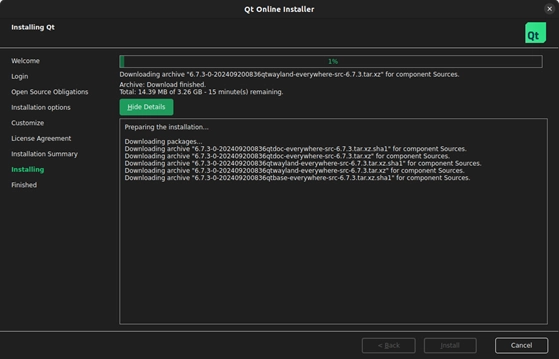
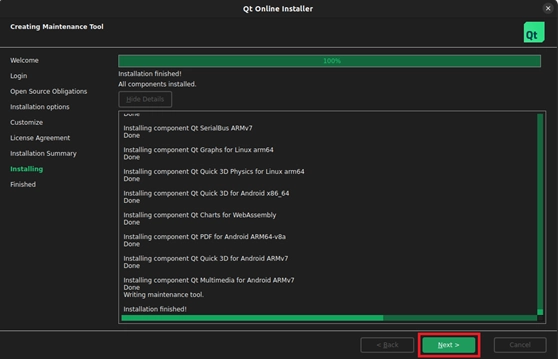
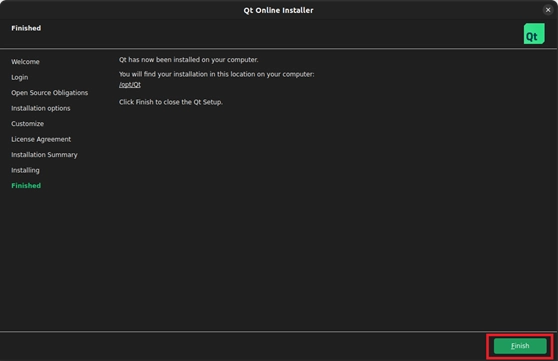
- Extra configuration for qmake
After successfully installing Qt 6.7.3, there is one more crucial "fail-safe" step to take: configuring the environment variables for qmake.
➤ Why do we need to do this? Simply put, the actual purpose of this setting is to "allow the system to accurately identify and uniformly manage the Qt 6.7.3 qmake we just installed."
In a Linux environment, if you don't specifically configure this, the system will often get "lost" when you type qmake directly into the terminal to compile a project, and might mistakenly call: - The leftover `qmake` from an older Qt5 version - The default `qmake` installed via apt
This will cause the build environment to completely fail to find the correct version you just installed. To avoid this dilemma, we will use a small tool called qtchooser to help the system firmly bind to the correct Qt 6.7.3 path.
sudo apt install qtchooser

cd /opt/Qt/6.7.3/gcc_arm64/bin

sudo qtchooser -install qt6.7.3 ./qmake

qtchooser -l


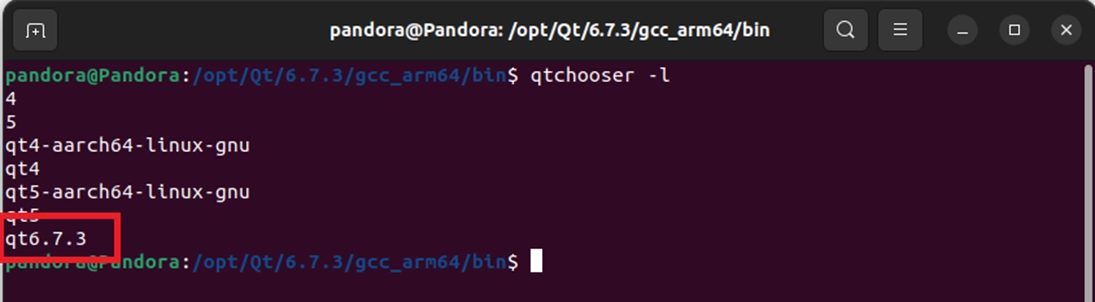
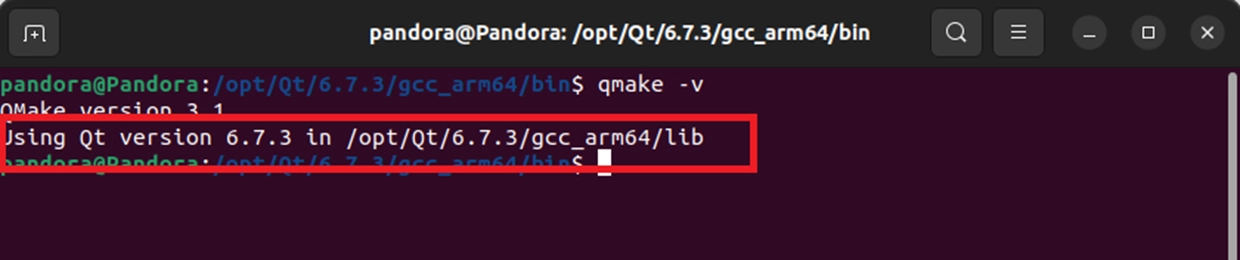
export QT_SELECT=qt6.7.3

qmake -v

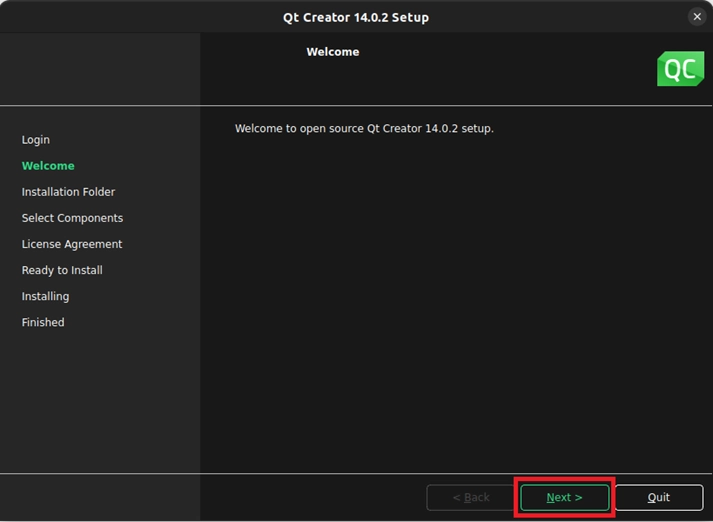
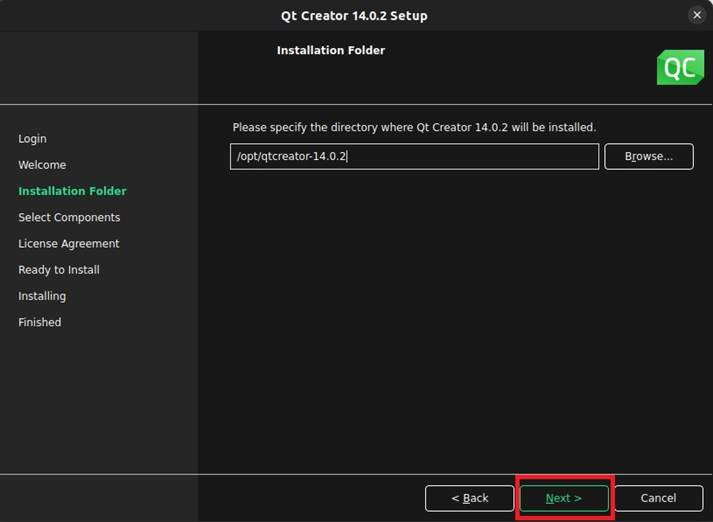
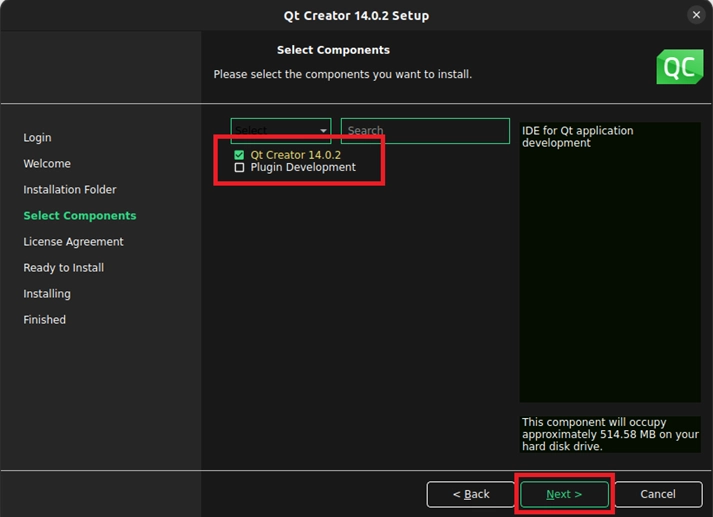
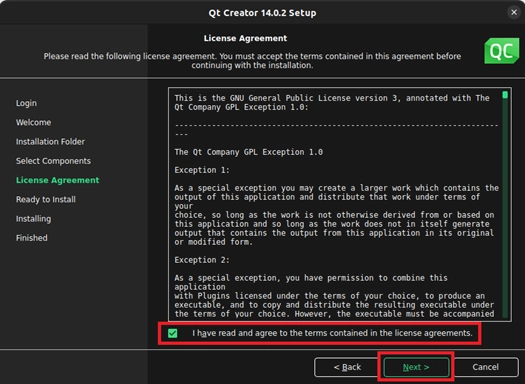
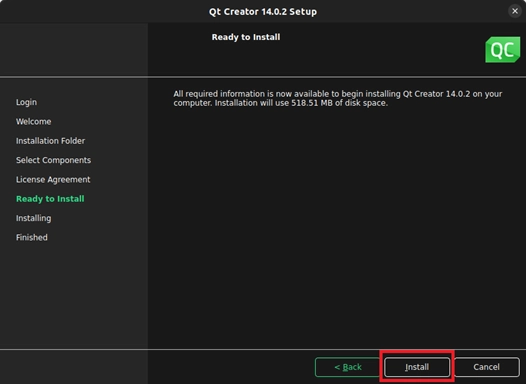
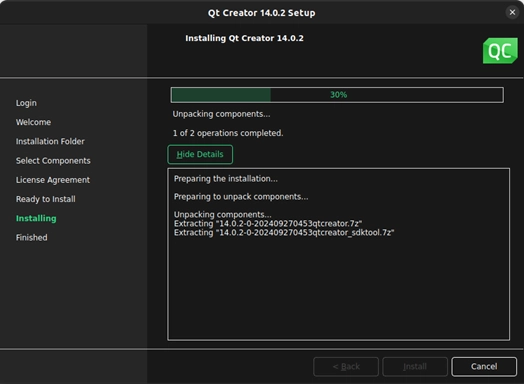
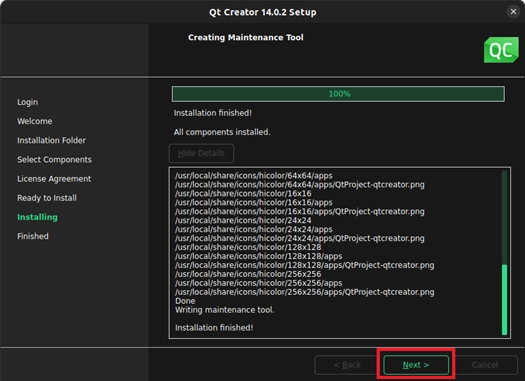
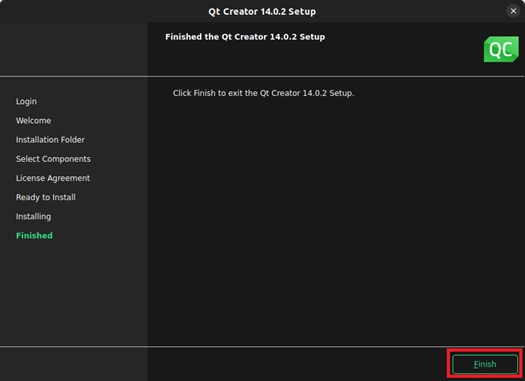
- Qt Creator Installation
o Execute the installer:
sudo chmod +x qt-creator-opensource-linux-arm64-14.0.2.run

sudo ./qt-creator-opensource-linux-arm64-14.0.2.run


- CMake Installation
o Execute the installation script:
sudo chmod +x cmake-3.30.5-linux-aarch64.sh

sudo bash cmake-3.30.5-linux-aarch64.sh --prefix=/usr/local --skip-license


Environment Verification
After installation is complete, please verify that the versions and paths of all tools are correct:
1. CMake Version Check
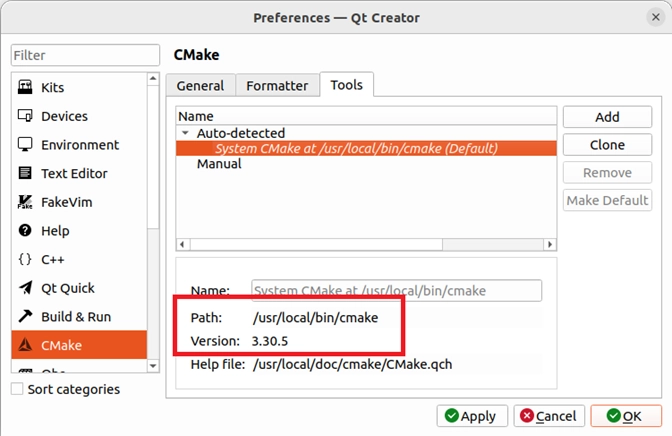
Enter cmake --version in the Terminal; it should display 3.30.5.

2. IDE Path Check
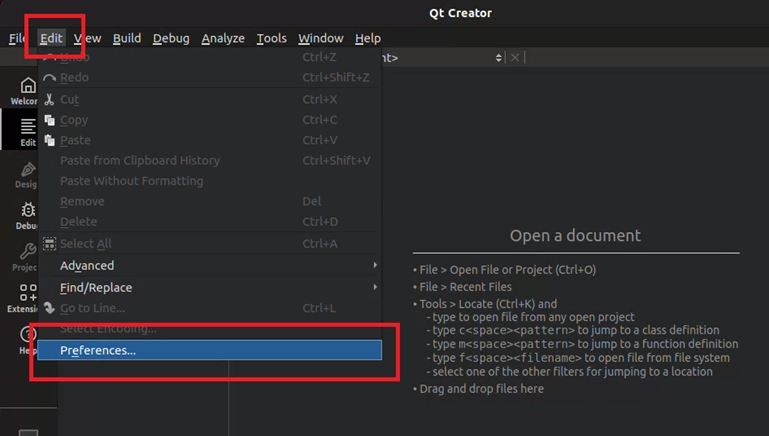
Open Qt Creator, go to Edit > Preferences > CMake > Tools, and confirm the CMake path points to /usr/local/bin/cmake.
Adapted from the original YUAN Developer Hub article. Source ID: 315.