3-9 Visual Studio Code Installation
Learning Objectives
This chapter covers installing VS Code on your Pandora (Jetson platform), helping you quickly set up a smooth development environment. Visual Studio Code (VS Code) is a lightweight, cross-platform code editor from Microsoft, supporting various programming languages, version control, and extensive extensions. For developers working on Pandora system development or AI and image processing projects, VS Code offers a integrated development and debugging experience.
Installing Visual Studio Code
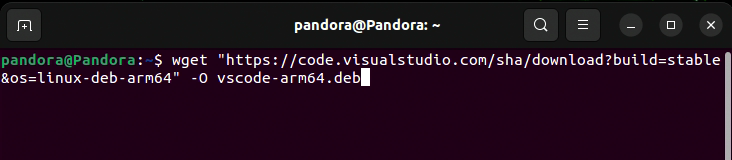
1. Download the VS Code installation file using the terminal:
wget "https://code.visualstudio.com/sha/download?build=stable&os=linux-deb-arm64" -O vscode-arm64.deb
2. Install VS Code.
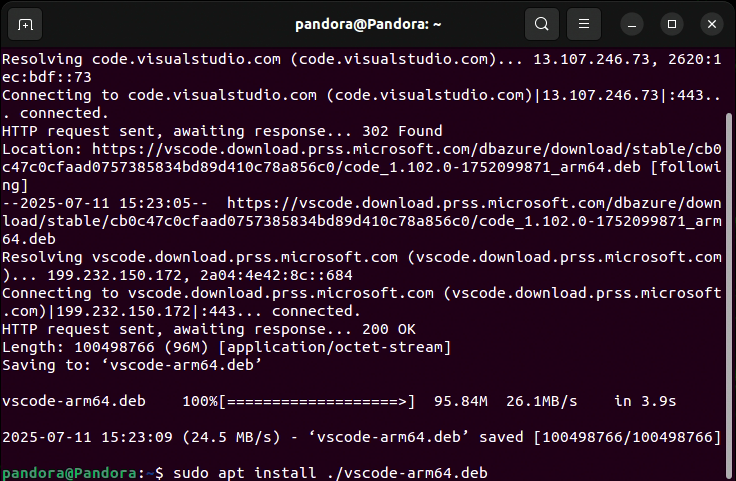
Once the download is complete, use the following command in the terminal to install it (make sure to use the actual filename):
sudo apt install ./vscode-arm64.deb -y
3. Delete the installation package after installation is complete:
rm vscode-arm64.deb

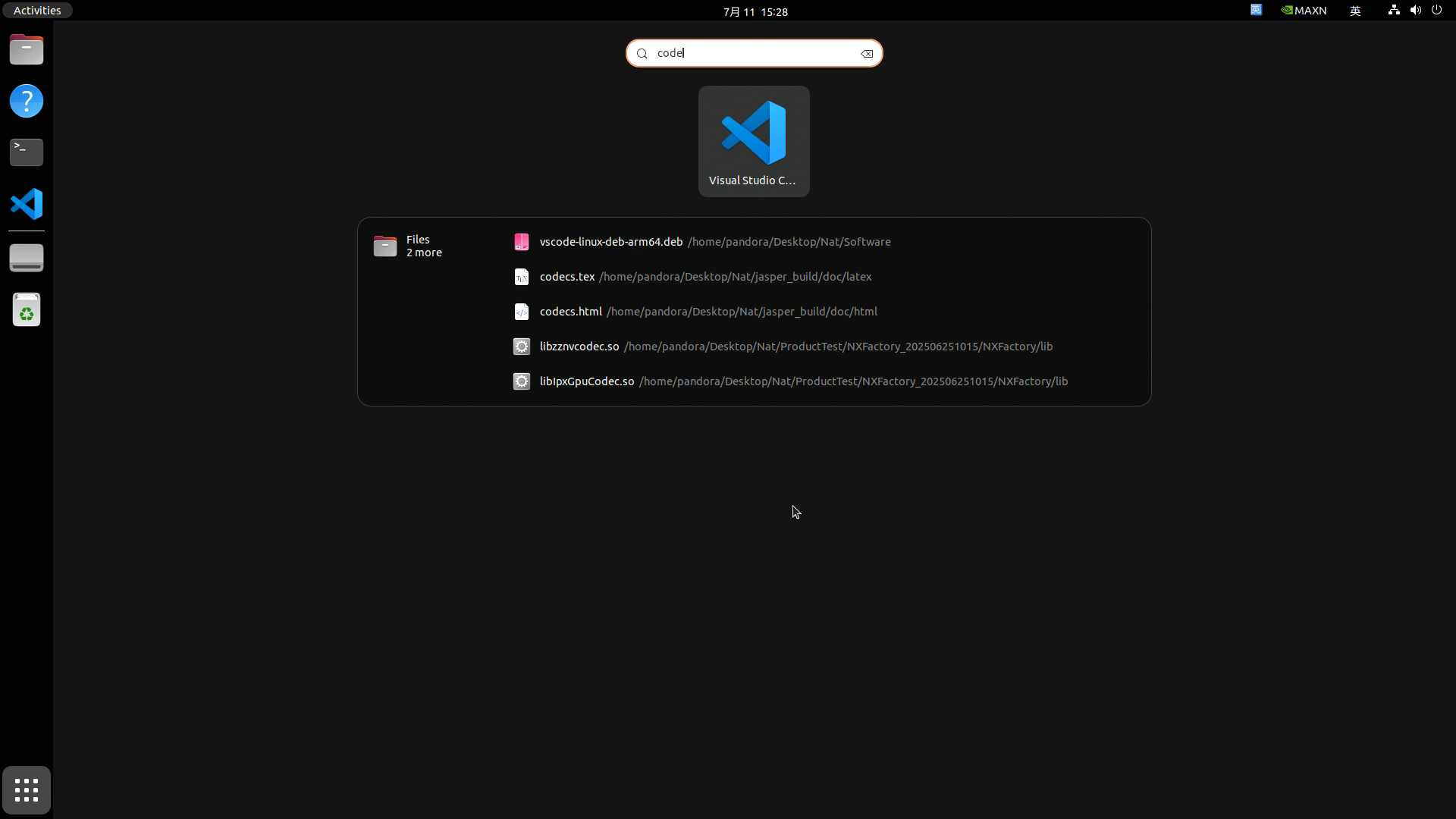
4. When you need to use VS Code, you can find it in your applications list and click to open it, or use the terminal (recommended, as you can directly specify a path):
code /path/to/your/file/or/folder

For more information on how to use VS Code, please refer to the official documentation:
https://code.visualstudio.com/docs
Adapted from the original YUAN Developer Hub article. Source ID: 287.