3-8 Exchange Space Expansion
Learning Objectives
Swap space is a mechanism used by the system to temporarily store data on storage devices when physical memory is insufficient, helping prevent programs from crashing due to memory shortages. As AI model inference and image processing applications become increasingly common on Pandora, appropriately expanding swap space in such high-memory-demand scenarios enhances system stability and flexibility.However, if your application has not yet encountered memory shortages, there is no need to manually adjust Swap settings. The system defaults are sufficient for general purposes.
If you encounter memory shortages during development (e.g., when running large models or compiling), you can increase virtual memory by creating a swapfile. Below is the procedure to add 8GB of swap (all operations performed in the terminal):
1. Open jtop
sudo jtop
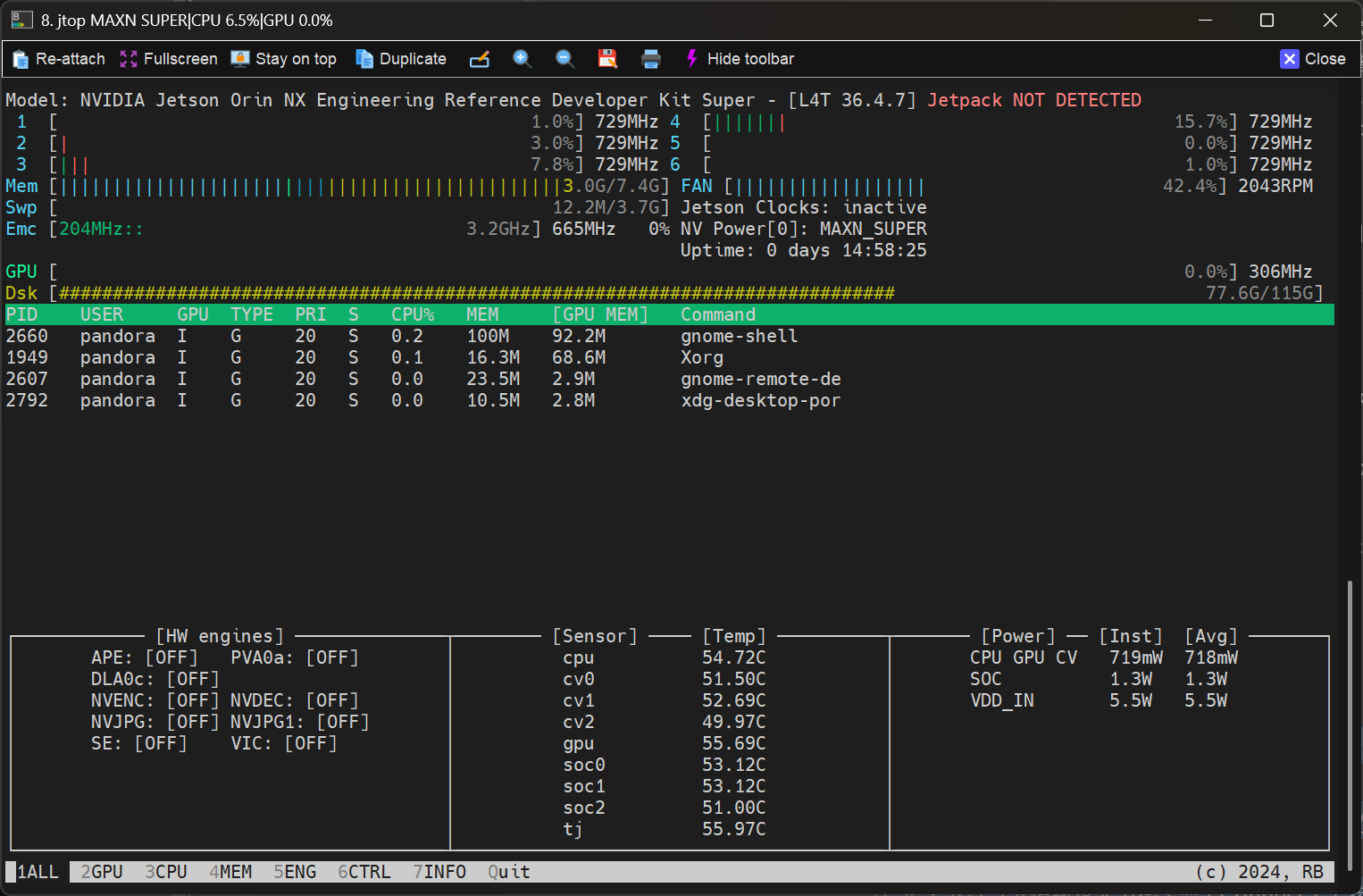
2. Switch to the Memory tab
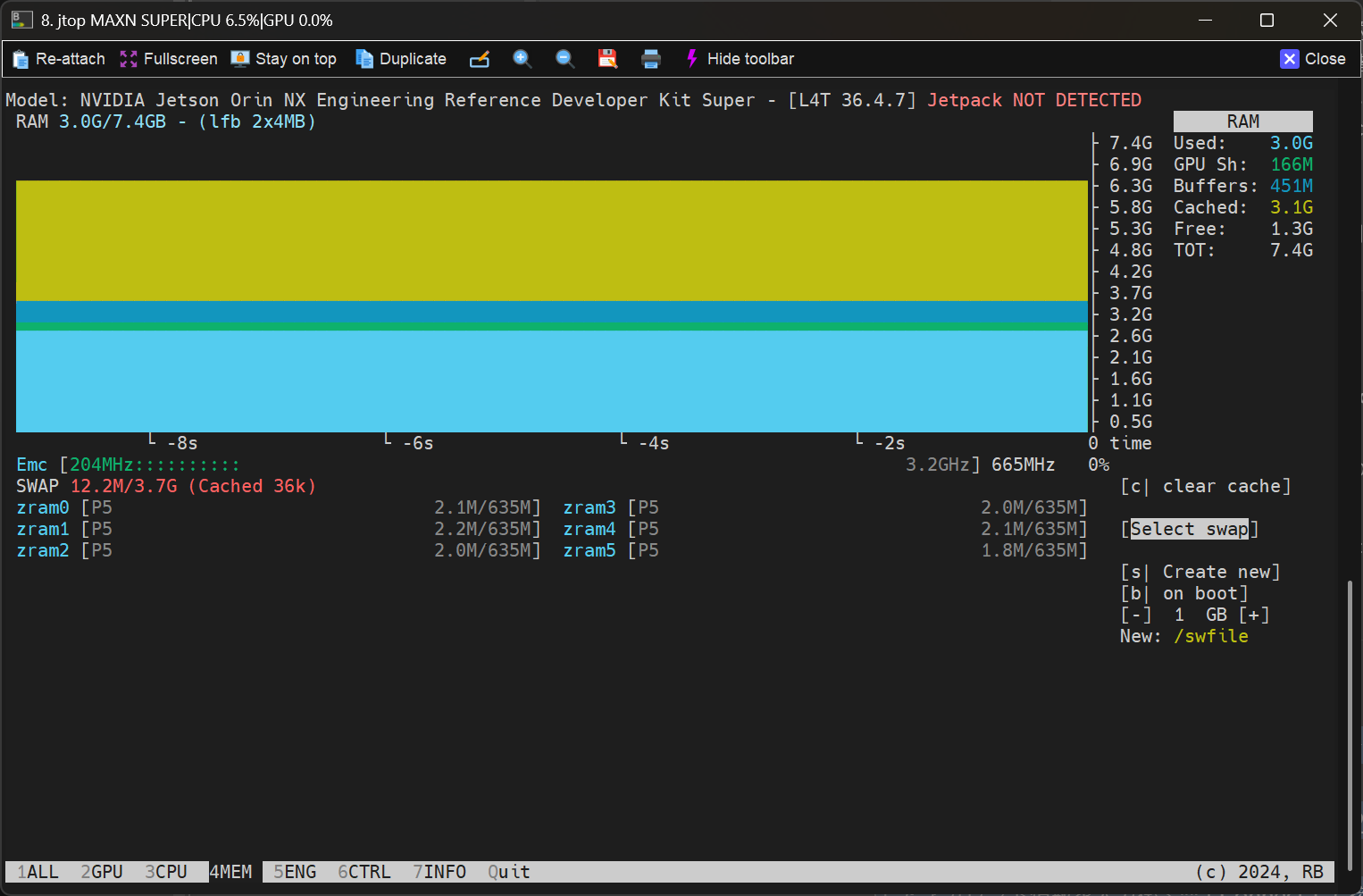
3. Adjust swap space settings, including capacity size and whether to enable it automatically at system startup. Use the "+ / -" keys to increase or decrease swap capacity, and press "b" to configure automatic swap mounting at boot.
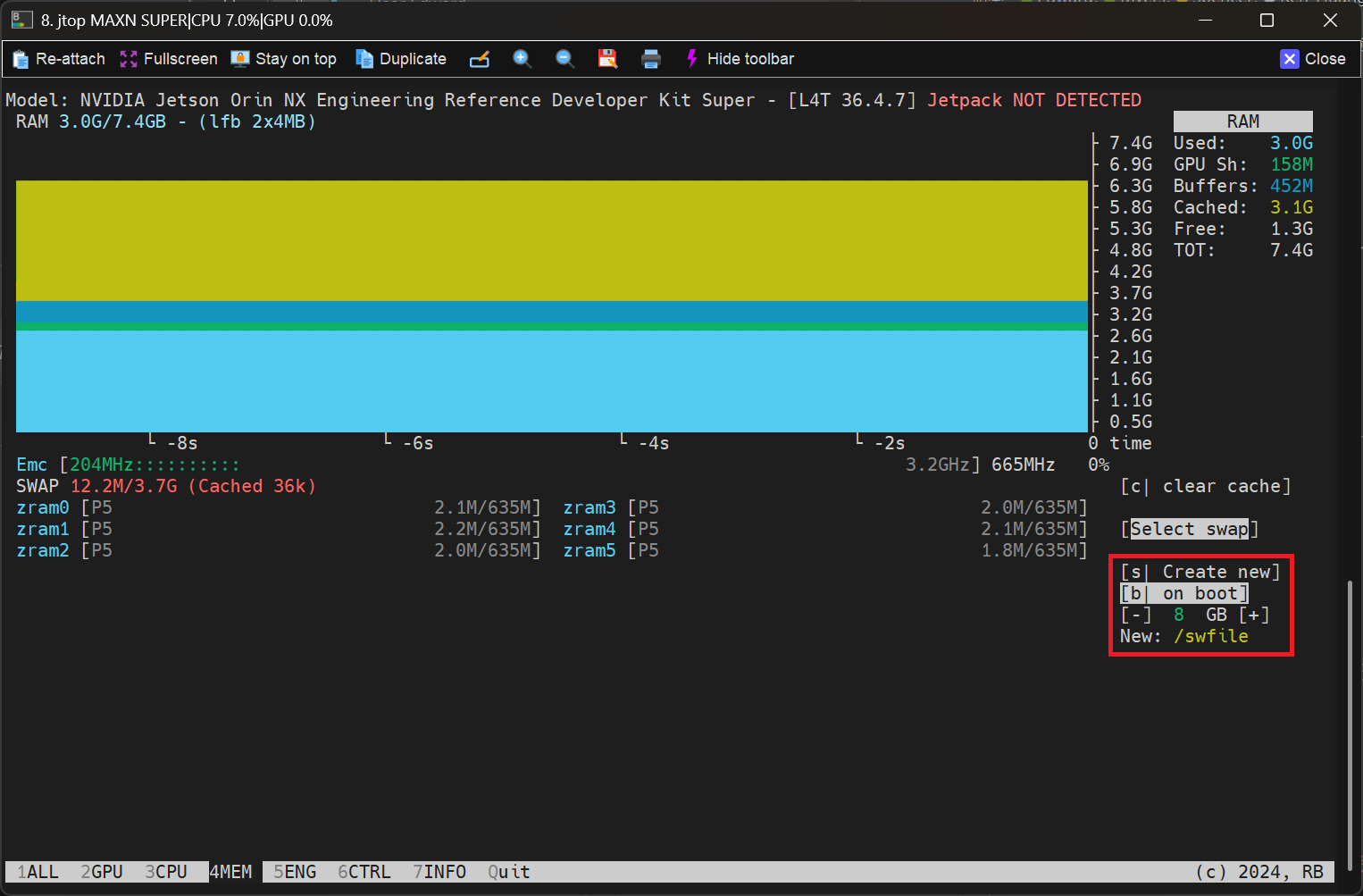
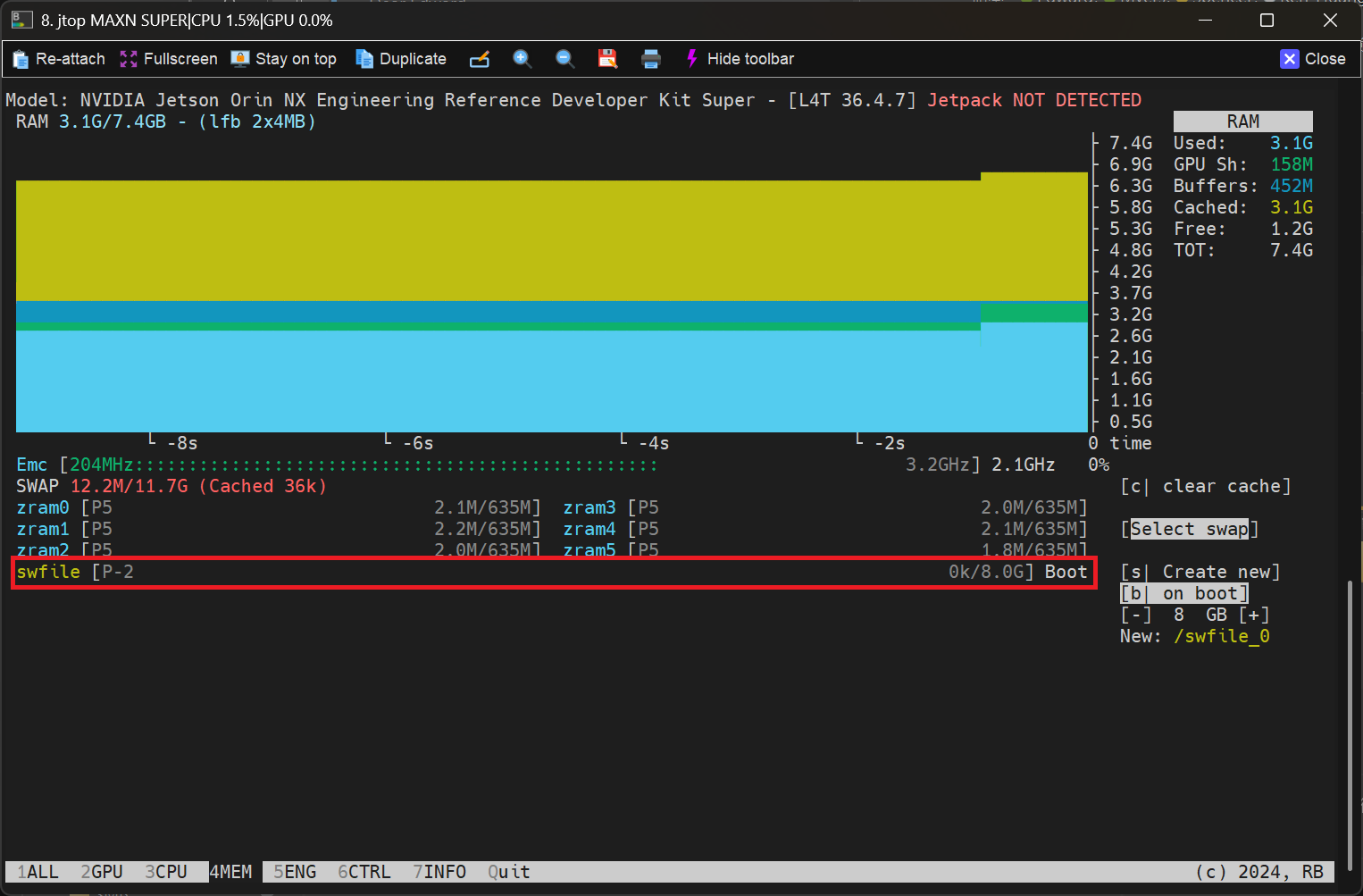
4. Press the "s" key to add the swap. After successful addition, you will see the sw-file usage displayed as shown in the box.
Frequently Asked Questions
Q1: What should I do if there is no response after pressing [s| Create new]?
A1: Delete the file with the same name in the / directory and try again. Follow these steps:
1. List all swfiles in the directory
ls /swfile*

2. Check which swap files are currently in use
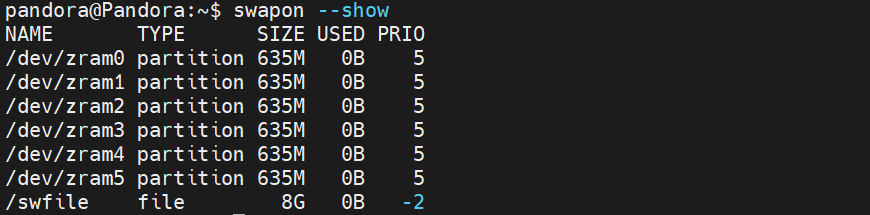
swapon --show
3. Remove the unused swap file
In this example, the unused swap file is /swfile_0. Remove it using the following command:
sudo rm /swfile_0
4. Try adding the swap again
Q2: How do I remove a swap file that is currently in use?
A2: Disable the swap first, then remove the swap file.
1. Check which swap files are currently in use
swapon --show
2. Disable the active swap
As shown in the figure above, the active swap file is /swfile.
sudo swapoff /swfile
3. Remove the swap file
sudo rm /swfile
Adapted from the original YUAN Developer Hub article. Source ID: 286.